Installing ConnectEase

You must install the ConnectEase version, 16-bit or 32-bit, specific to the front-end
application programs and operating system platform you will be using with ConnectEase.
Generally, if you are using Windows 3.1x then you will only need the 16-bit version of
ConnectEase. If you are using Windows 95 or Windows NT, then which driver you need is
determined by the platform (16 or 32-bit) of the front-end application you will be using
with ConnectEase. For example, if you are using Windows NT (32-bit) with Microsoft Access
2.0 (16-bit), then you will want to use the 16-bit ConnectEase driver.
ConnectEase ships on two diskettes, or two download files, one for 16-bit implementations and the other for 32-bit implementations.
Before you Begin
You must know the full path to the DataEase database that you wish to access and the name of the DataEase RDRR file in order to install ConnectEase. The person responsible for DataEase in your organization should know this information.
Running Setup
To install ConnectEase, insert the appropriate installation disk and run the supplied SETUP.EXE program.
Windows 3.1 and Windows NT 3.51 Users
Insert the ConnectEase for Windows diskette in drive A or B.
From the Windows Program Manager, select the Run command from the File menu.
Windows 95 and Windows NT 4.0 Users
Insert the ConnectEase for Windows diskette in drive A or B.
Select the Run command from the Windows 95 Start Menu.
All Users
When the Run dialog appears, type:
x:\setup
where x represents the appropriate drive letter A or B.
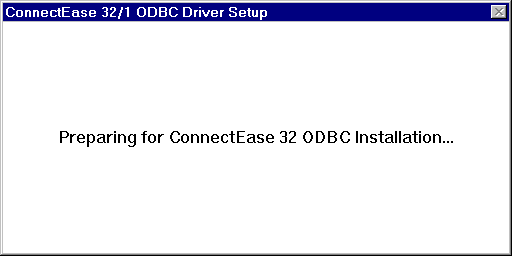
While the setup program is loading you will see the following screen.
When the setup program has finished loading, the following screen will appear.
Click on Continue to begin the installation process or click on Exit to terminate the program.
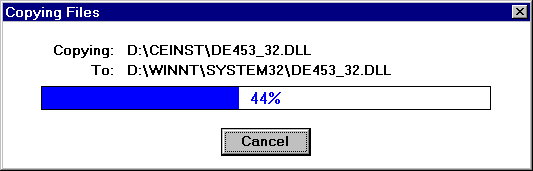
The following message screen will appear while the setup program copies the ConnectEase files to your system.
When all files have been copied, the following Data Sources screen will be displayed.
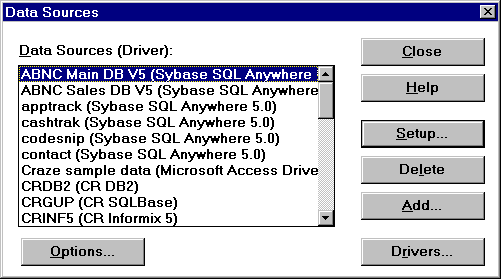
Click on Add to add a DataEase database to the ODBC configuration. Please note, you must add a separate data source for each DataEase database that you plan to access. See Chapter 3, "Configuring ConnectEase" for more information on adding data sources.
The Add Data Source screen will appear.
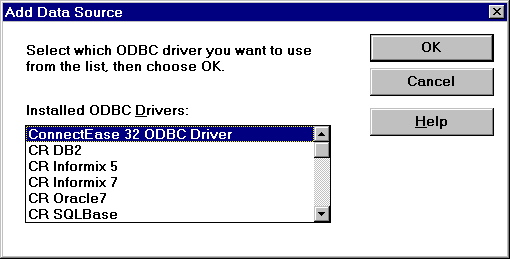
Click on ConnectEase ODBC Driver to highlight it in the list of installed ODBC drivers, then click on OK.
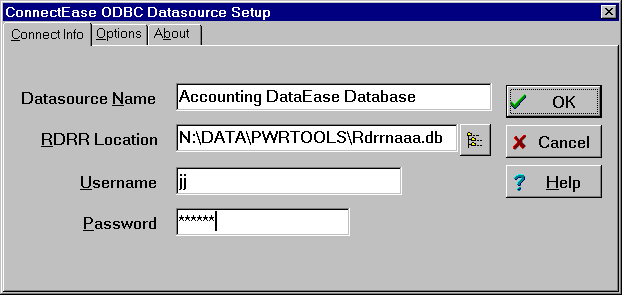
The ConnectEase ODBC Datasource Setup screen will then appear. The setup screen is organized into a tabbed notebook dialog box with different pages accessible through tabs appearing across the top of the window. To successfully setup a ConnectEase data source, you must at least complete the information requested by the Connect Info page of the setup dialog box.
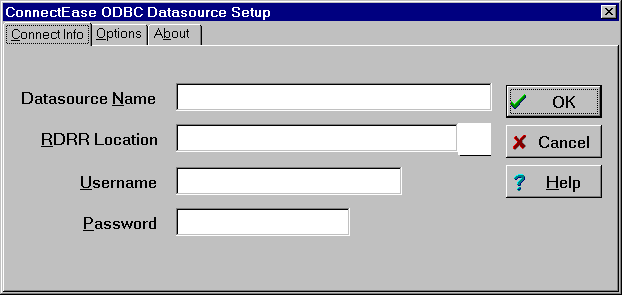
This section of the setup program requires you to assign a name to your data source, specify the location of the DataEase database system catalog (the RDRR file) and the default user name and password to be used to gain access to the database.
The RDRR file contains the descriptive information needed to access the database forms and data. It is always located in the same sub-directory as the other files comprising a database. Its file name begins with RDRR and it always has a .DBM extension. The only variant portion of the file name is the fifth character, which is a unique identifier (within a sub-directory) for the database.
The RDRR file entry must specify a valid DataEase RDRR file name, including a complete
path and drive specification. The  button appearing to the right of
the entry invokes a browse dialog that makes locating specific RDRR files easier.
button appearing to the right of
the entry invokes a browse dialog that makes locating specific RDRR files easier.
Alternately, you may type the full path to your DataEase database in the RDRR Location field, or you may click the button to enter the path with the Select RDRR File dialog shown below.
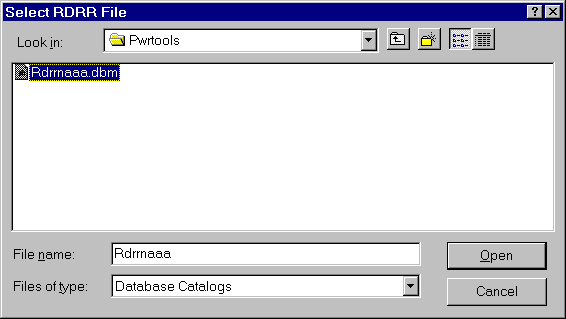
The Select RDRR File dialog allows you to navigate the drives on your system to find the directory that contains your DataEase RDRR file.
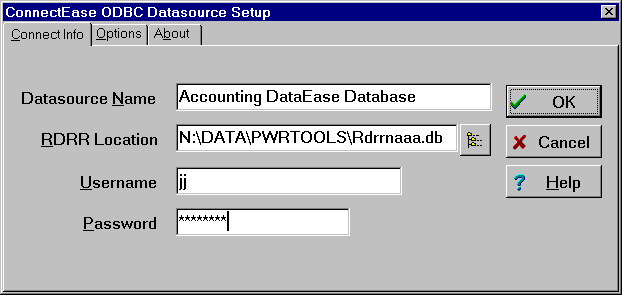
If you use the browse feature, the Data Source Name entry will be automatically populated with the database name stored within the selected DataEase database (unless you have already entered text in this control). By default, the setup program uses the name from your DataEase database as the name for a data source. It may be beneficial to include 'DataEase' in the name to distinguish this data source from other ODBC data sources for other types of databases that may be accessible via ODBC on your computer.
You can enter user name and password values in the Username and Password fields. The entries should be valid for the selected database. NOTE: It is not required that you supply a user name and password in this screen. If you do, these values will be stored on the client computer in the INI file or registry section and will be used by certain front-ends to open the database. This may not be desirable from a security standpoint. If you choose not to supply values for logging in at this time, then the user will need to supply these values each time a connection is made to the data source.
Click on OK when you have entered all of the required information.
The Data Sources window will then appear with your new data source listed in the data sources list.
SetDS 61
Click on Close to complete the configuration.
The following screen will appear.
SetDS 62
Click on OK to confirm the installation.
ConnectEase is now installed on your computer. To configure additional DataEase databases, see Configuring ConnectEase.
Altering DataEase' Configuration Settings For Optimum Performance
In databases that ConnectEase users will share with native DataEase users, we suggest setting the DataEase locking option: 'When in Record Entry, how should viewed records be locked?' to Shared. You will find this setting in the Define Configuration record in the System Administration menu in DataEase.
.
Copyright ©1997 by montreaux media corporation - ALL RIGHTS RESERVED