Configuring ConnectEase

Configuring ConnectEase
This chapter describes how to configure ConnectEase to access a DataEase database. The Microsoft Open Database Connectivity specification requires that each ODBC data source be defined to the system with the ODBC Administrator program. The ConnectEase setup program described in the "Installing ConnectEase" chapter of this manual allows you to define a DataEase data source during the installation process.
If you need to modify the data source defined in the installation process or add additional DataEase databases to your configuration, follow the steps outlined below.
Windows 3.1 and Windows NT 3.51 Users
From the Windows Program Manager, double-click on the Control Panel icon in the Main program group to start the Control Panel.
Windows 95 and Windows NT 4.0 Users
Double-click on the My Computer icon on the Windows desktop to open the folder.
Double-click on the Control Panel icon in the Main program to start the Control Panel.
All Users
Double-click on the ODBC icon to start the ODBC Administrator
The ODBC Data Source Administrator screen will appear.
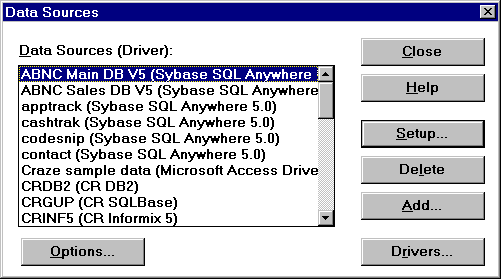
Click the Add button to add another DataEase database to your ODBC configuration. Please note, you must add a data source for each DataEase database that you plan to access. Scroll through the list of User Data Sources until you find the ConnectEase data source you wish to configure.
If you selected Add you will see the following screen, otherwise skip to the next step.
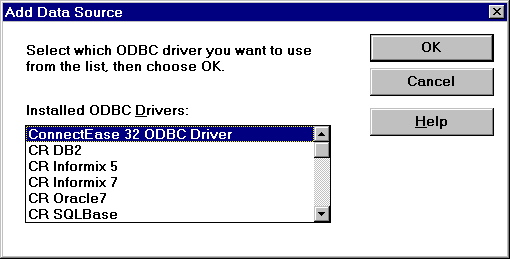
Click on the ConnectEase ODBC Driver entry in the driver list and then click the Finish button.
The ConnectEase ODBC Datasource Setup screen will then appear. The setup screen is organized into a tabbed notebook dialog box with different pages accessible through tabs appearing across the top of the window. To successfully setup a ConnectEase data source you must select a DataEase database catalog (RDRR file), optionally assign a default user name and password to be used by this client when connecting to the database and optionally set certain access options available, such as character translations, how to handle choice field types, and how strict to be in pre-validating records written by the driver to the database.
The RDRR file contains information needed to access the database forms and data. It is always located in the same sub-directory as the other files comprising a database. Its file name begins with RDRR and it always has a .DBM extension. The only varian
The RDRR file entry must specify a valid DataEase RDRR file name, include a complete
path and drive specification. The  button appearing to the right of
the entry invokes a browse dialog that makes locating specific RDRR files easier.
button appearing to the right of
the entry invokes a browse dialog that makes locating specific RDRR files easier.
If you use the browse feature, the Data Source Name entry will be automatically populated with the database name stored within the selected DataEase database.
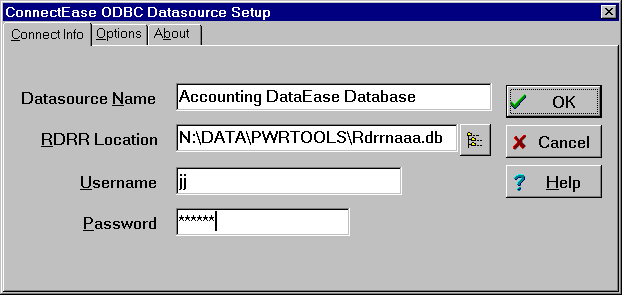
You may type the full path to your DataEase database in the RDRR Location field, or you may click on the button to enter the path with the Select RDRR File dialog shown below.
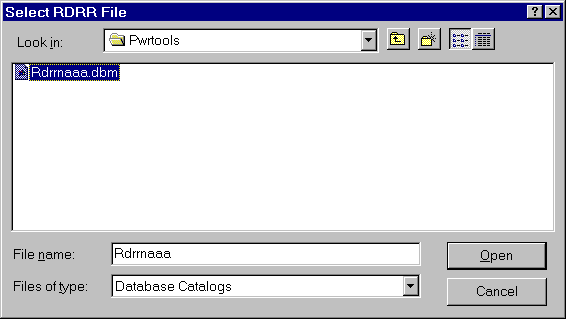
The Select RDRR File dialog allows you to navigate the drives on your system to find the directory that contains your DataEase RDRR file.
You should now enter a name for the DataEase database that you wish to access in the Datasource Name field. The setup program will use the name from your DataEase database as the default name for your data source. This name should be descriptive of the database.
You should enter your DataEase user name and password in the Username and Password fields. The entries should be valid for the selected database. If the Username or Password fields are left blank or are not valid, you will be required to enter a valid user name each time you connect to the data source from this client.
The Options tab allows you to specify character translations for field names in your DataEase databases, to configure the driver to return choice field values as numbers or text and to establish the pre-write validation rules the driver will use in writing data to the database.
Some special characters and international characters allowed by DataEase in field names are not acceptable to certain Windows applications. For example, Microsoft Access does not permit '#', '!', '[', ']', '&', '+', '-', ':' characters in its field names, among others, while DataEase does. Without an automatic character translation facility, one would likely face the monumental task of manually renaming each offending field, including all references to it appearing in relationships, DQL procedures, formulae, etc. ConnectEase includes a character translation feature that will automatically filter offensive characters out of field names, replacing them with underscores, or whatever else you deem appropriate.
The following example shows a character translation of '!' to '#', '.' to '_' and '+' to '_'. This will cause a field named '!Amount.Total' to be displayed by the Windows application as '#Amount_Total'.
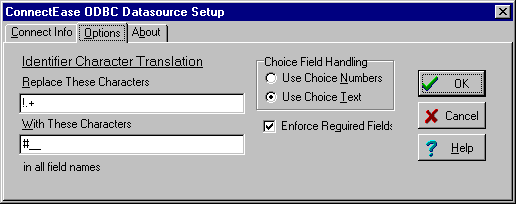
You may choose whether choice field type data is returned to your front-end application as choice numbers or as the text value. You may optionally have the driver enforce entry into field flagged as 'Required'.
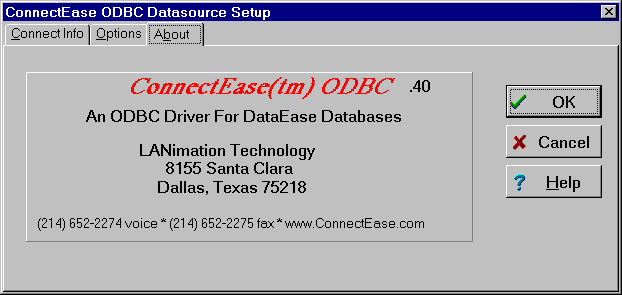
If you click on the About tab the following ConnectEase information screen will be displayed. Please note that the number in the upper right-hand corner indicates the specific version of ConnectEase that you have. You may be asked for this information if contact technical support for assistance.
Click on OK when you have entered all of the required information.
Copyright ©1997 by montreaux media corporation - ALL RIGHTS RESERVED