Activating Demo Versions of ConnectEase
ConnectEase initially installs as a Trialware Demo version which limits each table to
100 records and is single-user. You have a demo version if an 'About' box similar to that shown below appears each
time the driver is activated. Clicking 'Ok' permits unlimited execution of the driver as a
demo version.
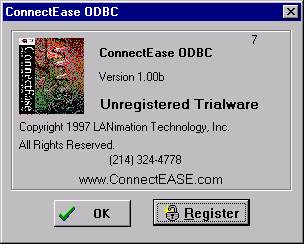
(note that phone number shown here is incorrect. Our phone number is now 214-324-3800.) Converting a demo driver into a fully-functional, licensed component replete with the
options and features you have chosen is a simple process. When you are ready to license
your driver, click the 'Register' button.
Instructions for running the Registration Wizard.
First, Get a serial number.
All products must be serialized.
Then, run the registration wizard....
Windows XP/2000/NT users: You MUST be logged in as a local administrator to successfully install ConnectEase.
When the trial version of the software initially loads the reminder screen shown above
is displayed. You can force this to occur by Adding or Editing a ConnectEase datasource
with the ODBC manager or by either by connecting to a ConnectEase ODBC datasource with
your application (such as when you link or import a table with Microsoft®
Access).
When a you wish to Register (Purchase) your driver, you simply need to click on the
'Register' button in the About box. This activates the Registration Wizard,
which allows you to choose the options you want.
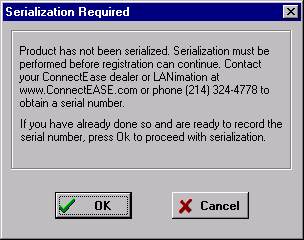
If the software has never been serialized (i.e. a download), then you will first be
required to obtain a serial number.
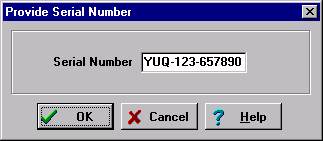
The serial number simply allows us to track the software. You are only required to enter a
serial number once.
The Register dialog requires you to input three items of information: The location of
the license 'certificate' file, the product class you are licensing (Consultant/CHEAP, Silver or
Gold), and the number of simultaneous users that you wish to be able to access the
product. With the consultant edition (single-user), the location of the license file is
unimportant as long as it is located in a place accessible by the driver at run-time and
the number of users is, of course, one.
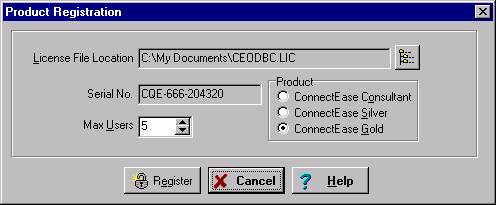
(Note: you should enter the fully-qualified pathname where the Registration wizard will create the license file - INCLUDING the filename. i.e. c:\licenses\ceodbc.lic. You MUST be logged in as a local administrator if you are installing ConnectEase on a Windows XP/NT/2000 machine)
For multi-user versions of the software, the license certificate file MUST be on a
shared Novell drive that all ConnectEase users may access equally (Shared Read-Write
access is required). The software will FUNCTION with the license file on a local
drive, but proper file and record locking WILL NOT occur and data integrity could be AT
RISK!
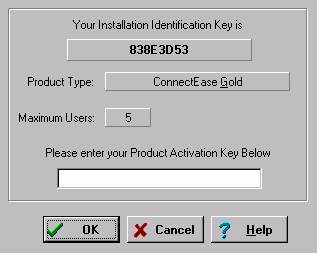
After choosing a license file location and the product options desired, you should
click the 'Register' button. At this point, a dialog will
appear which affirms the choices made and provides a 'Product Activation
Key' value. It is this key value, along with the other pertinent
registration information, that must be conveyed to us so that we may supply you with the
'secret code' that will unlock the software for your use.
Step 4) Complete the on-line registration form
Made it this far? Next, follow this link...
Additional Information
Note that the product activation key is static so long as the other information
provided also remains static, so we can be contacted via fax or e-mail and the 'magic
number' we provide back will be valid the next time you run the registration process.
Once you have entered a valid Product Activation Code, the product is enabled for the
level and number of users chosen. When installing additional workstations on a network,
simply locate the existing certificate file on the shared drive and leave the rest of the
information unchanged. The Registration Wizard will use the information contained in the
existing certificate file; no other registration steps are necessary.
If you ever want to upgrade your software to a higher level or more users, simple
remove or rename the certificate file. This will force the registration process to repeat,
at which time new features can be selected and a fresh Activation Code entered.
Interim product updates can simply be downloaded and installed over the previous
version without the need to re-register.
Occurrences that will require re-registration are:
- The certificate file becomes corrupted or disappears.
- (Silver/Gold) The certificate file is moved from its original file
server/volume:subdirectory.
- (Silver/Gold) The network file server's serial number changes or the volume name of the
drive where the certificate is stored changes.
Clients that download and register electronic versions of Consultants, Silver and Gold editions will receive
documentation kits free of charge direct from LANimation. |
