Using ConnectEase With Microsoft Access 97 or 7.0

The following example shows how to use Microsoft Access to connect to a DataEase database.
Open Microsoft Access as you would normally.
Select your Microsoft Access Database.
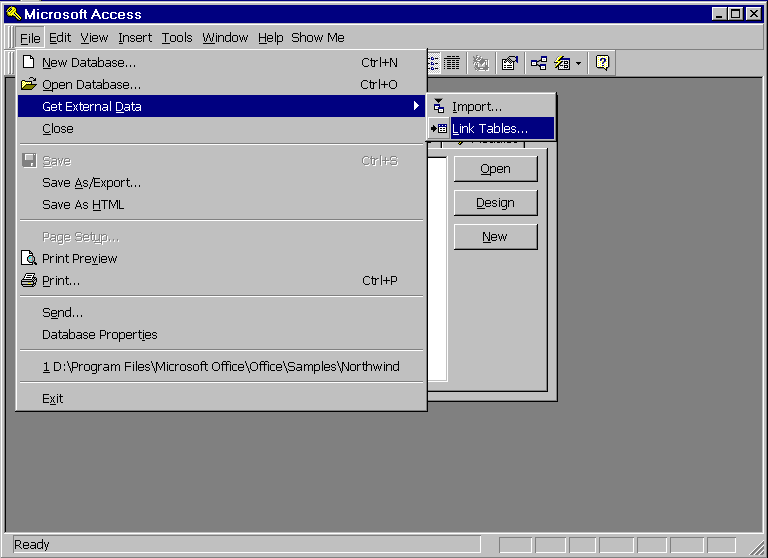
From the Microsoft Access File menu, choose the Link Tables sub-menu from the Get External Data menu. See the example pictured below.
The Link screen will appear as shown below.
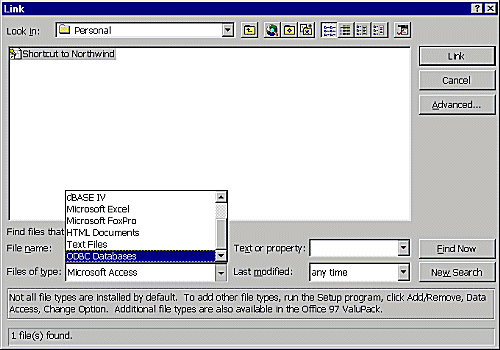
In the Files of type selection box, select files of type: ODBC Databases.
Click on the Link button. The Select Data Source window appears.
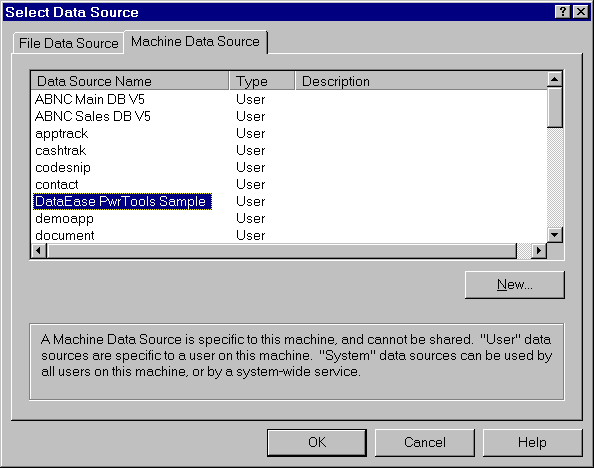
Click on the Machine Data Source tab and a list of data sources will be displayed. From the list of Machine Data Sources, select the DataEase data source that you want to access. You must defined a separate data source for each DataEase database you will access with ConnectEase. You define Data Sources by using the ODBC Administrator program found in the Windows Control Panel.
After you make your selection, click on OK. The Link Tables screen will appear as shown below.
From the list of tables, click on the table or tables you wish to access.
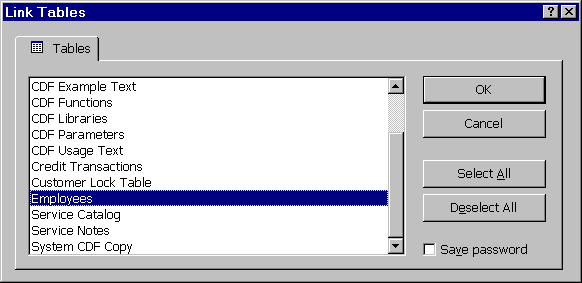
After you have made your selection, click the Save password check box and then click the OK button. The following screen should appear with your tables added to the list.
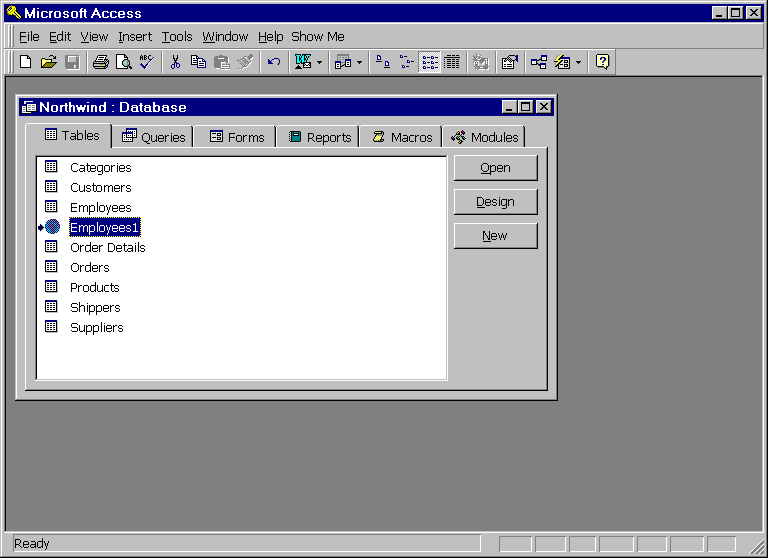
From the supplied list, open your selected table as you would any other Microsoft Access table.
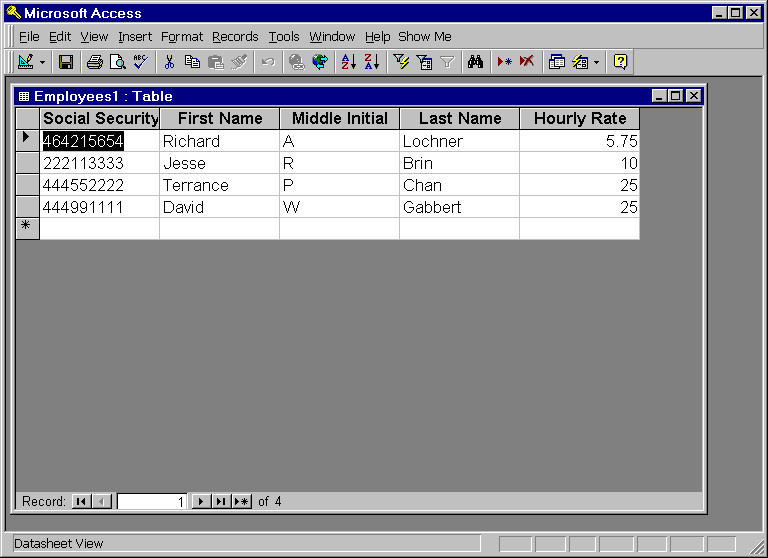
Your data should appear as in the above example.
.
Copyright ©1997 by montreaux media corporation - ALL RIGHTS RESERVED